if your PC died today, will you lose those files forever? how long will it take to get back on track...?
Or how will it take you to migrate to a new PC?
I’m not even being dramatic, but what if the unexpected happens?
Your PC powers on but gets stuck in a boot loop, the SSD decides it has had enough, or one random Windows update woke up and chose violence. In that moment, the pain is rarely the laptop itself. The pain is your stuff. Your invoices. Your customer list. Your files. All your data. That proposal you were polishing at 1AM. Your Chrome tabs, history and bookmarks that are basically your brain at this point.
The funny thing is, most people only start respecting backups after the first heartbreak. They’re like, “Ah, it won’t happen to me.” Then it happens, and suddenly everybody becomes a data recovery expert overnight, calling one guy in Computer Village that has “miracle” in his bio. Sometimes you get lucky. A lot of times, you just learn an expensive lesson.
What “backup” really means
Backup is just having a second copy of your important things somewhere else, so when your computer misbehaves, you don’t lose your all your life's work. The keyword there is “somewhere else.” If your only copy lives on the same laptop that can fall, spoil, get stolen, or get ransomware attacks, then you don’t really have a plan. You just have hope.
Also, quick gist: syncing is not always the same as backup. Some tools “sync” by mirroring changes, which means if you delete a file locally, it can disappear in the cloud too. That’s not bad, it just means you should understand what you’re using, and enable features like file history/versioning where possible.
Now let’s talk about three easy, practical ways to back up without turning your life into an IT project.
Method 1: Cloud backup for your everyday files

This is the one I recommend for almost everybody because it’s low effort and high reward. You put your important folders inside a cloud-synced location, and your files quietly copy themselves to the internet in the background whenever you’re online. If your laptop disappears tomorrow, you can sign in on a new device and keep moving.
For Windows folks, OneDrive can automatically back up common folders like Desktop, Documents, and Pictures if you turn on its “Known Folder Move” feature. For many people, that alone covers 80% of what they actually need. On Mac, iCloud Drive can do a similar job for key folders depending on your settings. Google Drive also works fine if that’s your ecosystem.
The main “watch out” is space and expectations. Cloud storage usually has limits unless you’re paying, and huge video folders can chew through your plan fast. But for documents, PDFs, spreadsheets, and business files, it’s one of the cleanest wins you can get.
Method 2: External hard drive backup
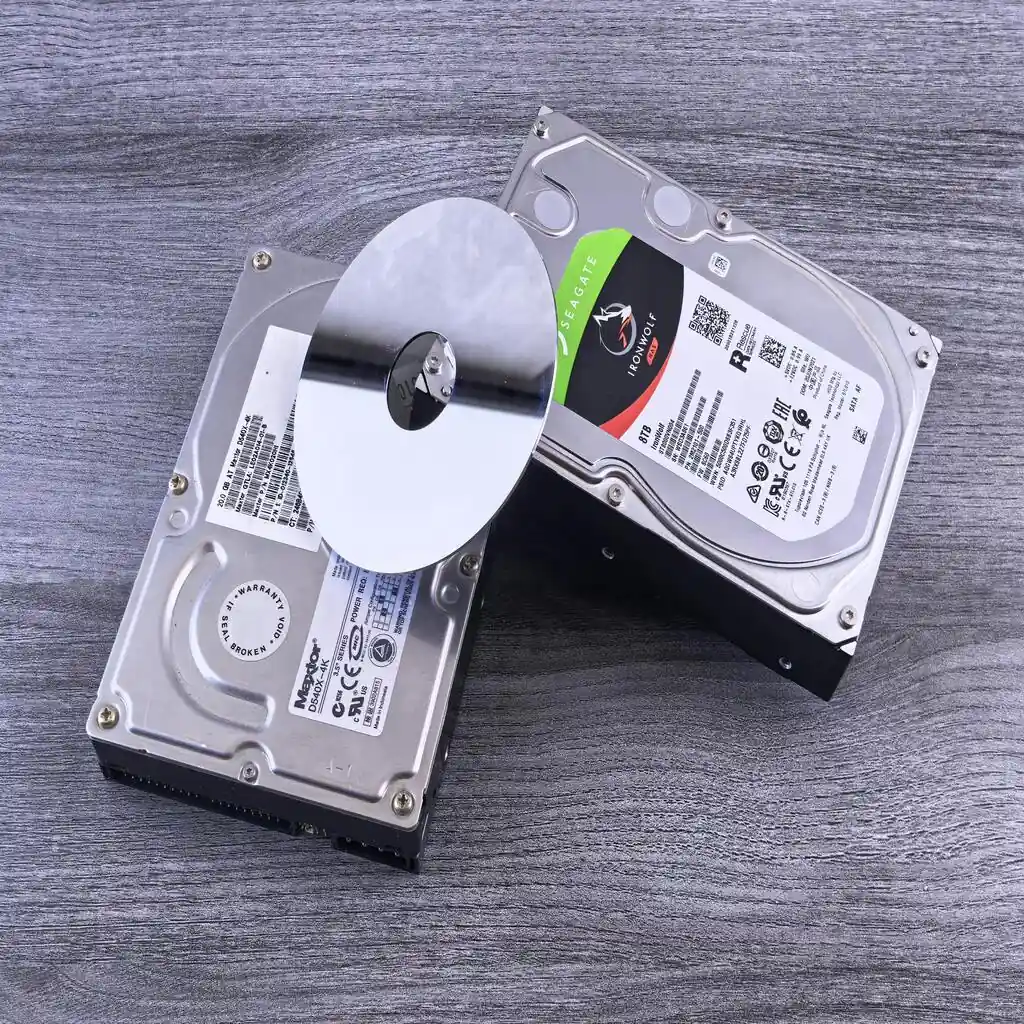
Cloud is great, but sometimes you want something you can hold. An external hard drive is basically “my files, but on a second device.” It’s also great when your internet is slow, because copying to a drive is usually way faster than uploading gigabytes online.
The easiest way to do this is to use the built-in backup tools that run automatically. On Windows, File History can regularly copy versions of your files to an external drive, so if you mess up a document today, you can often roll back to yesterday’s version. On macOS, Time Machine is the classic: you plug in a drive, turn it on once, and it keeps hourly/daily/weekly versions depending on how long you’ve had it running.
This method shines for “oops moments” like accidental deletion, overwriting, or “I edited the wrong file and now my boss is asking questions.” The only bad habit people develop here is buying the drive, backing up once, and then throwing it in a drawer for six months. The magic is consistency, so the drive should be connected regularly, or at least on a schedule you can actually keep. If your last backup was weeks ago, how's that for a backup?
Method 3: Full system image backup (when you want your whole computer back, not just files)
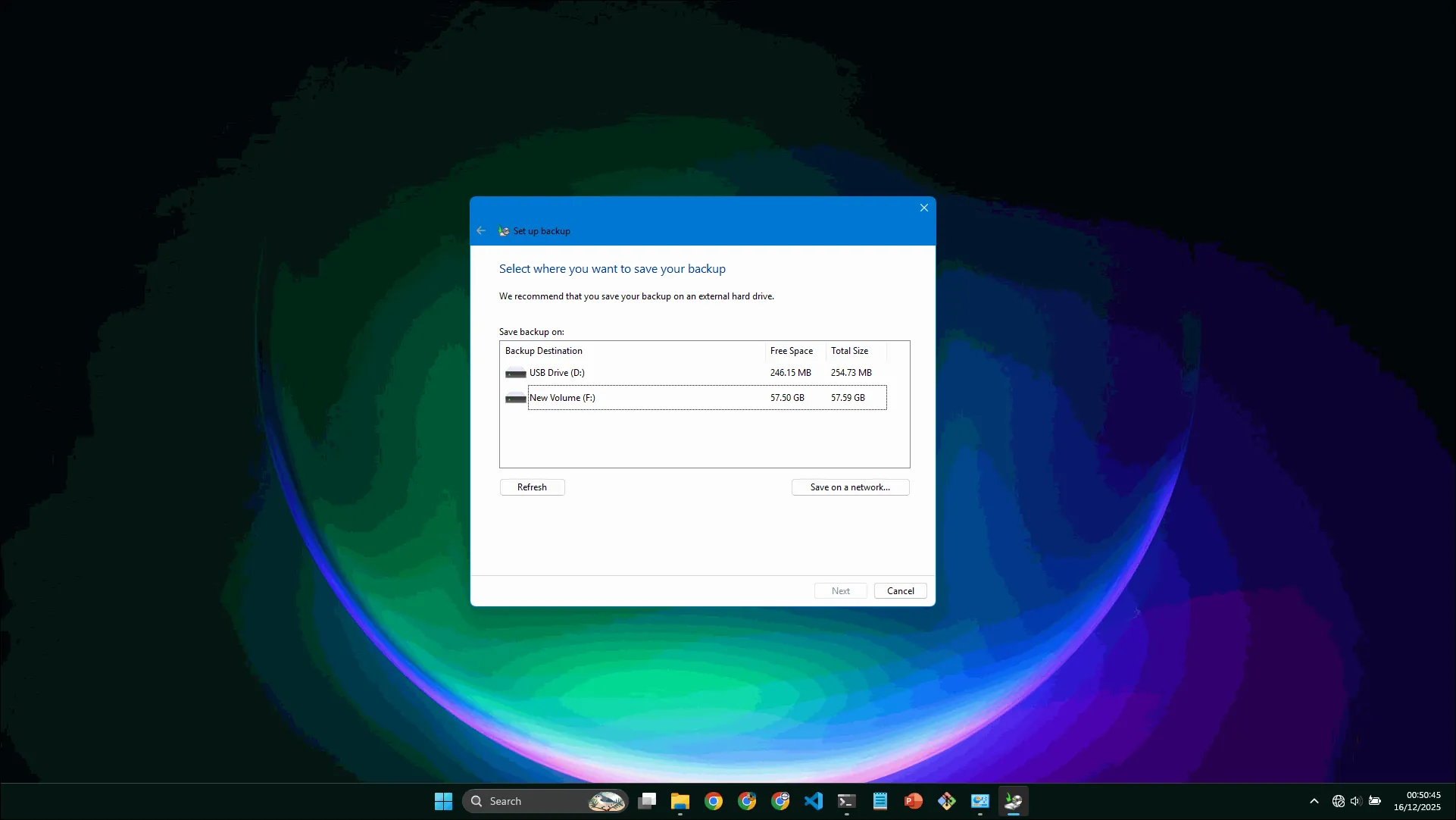
This is the one people skip until they experience a proper crash. A full system image backup is like taking a snapshot of your entire computer setup: your operating system, installed apps, settings, and your files. If your drive dies, you can restore that image and be back to “my computer as it was” instead of spending two days reinstalling apps, configuring printers, setting up email, hunting down license keys, and remembering all the tiny tweaks you forgot you ever did.
On Windows, you can create a system image with built-in tools (though Microsoft has been shifting away from some older backup features over time), and many people use trusted third-party backup software to make this easier and more reliable. On Mac, Time Machine can also restore an entire Mac from a backup, not just individual files.
If you run a small business, use specialized software, or your laptop is basically your office, this is the closest thing to “insurance” you can buy with just a hard drive and a little discipline.
The real takeaway
Backing up isn’t about being paranoid. It’s about not letting one random failure turn into a full shutdown of your work and income. If you do only cloud backup, you’ll still be grateful. If you do only an external drive, you’ll still be grateful. If you add a system image on top, you’ll start sleeping like someone who has seen life.
If you want the simplest “start today” move, pick one method right now and set it up in a way that runs without you having to remember every week. Because the best backup is the one that happens even when you’re busy living your life.
Want me to set this up for you?
If you’re reading this and thinking, “I get it… but I’m not in the mood to start clicking around Windows settings,” no stress. I can set up a proper backup system for your PC remotely, test it with you, and leave you with something you can trust.
You’ll end up with two things: your files backing up automatically, and a clear plan for what happens if your laptop decides to do anyhow tomorrow. Click here for your special offer