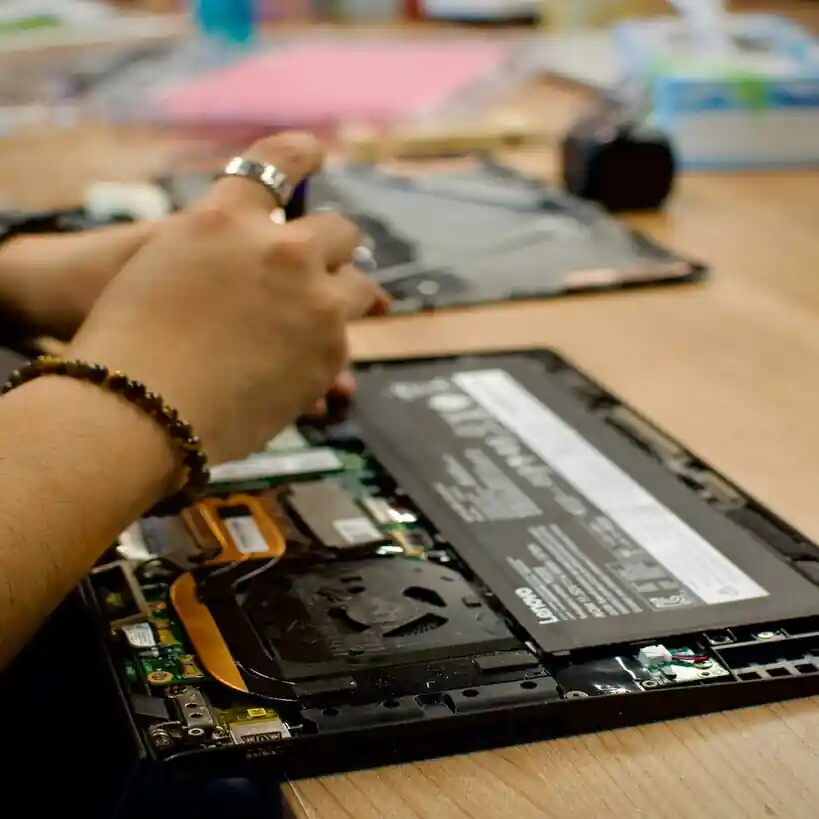
When a laptop starts acting up, people usually jump to two extremes:
-
“It’s a virus, just format it.”
-
“The motherboard is gone, just buy a new one.”
Meanwhile, the laptop is there, freezing, shutting down, or refusing to boot, and you’re stuck wondering: Is this something small I can fix, or is this the beginning of real wahala?
Understanding the difference between hardware and software issues won’t turn you into a technician overnight, but it can help you:
-
Avoid wasting money on parts you don’t need
-
Know when a simple reset is enough
-
Know when to stop trying random things and call for help
Let’s break it down in plain language.
Hardware vs Software: The Simple Version
Think of your laptop as a person.
-
The hardware is the body: the screen, keyboard, battery, fan, hard drive/SSD, RAM, motherboard, charger, ports. You can physically touch these.
-
The software is the mind and habits: Windows, apps, browser, antivirus, drivers, settings, even the little program that controls your touchpad.
If the body has a problem, you’re dealing with hardware.
If the mind or habits are confused, you’re dealing with software.
Sometimes they affect each other, but most issues start more clearly on one side than the other.
How Hardware Problems Usually Look
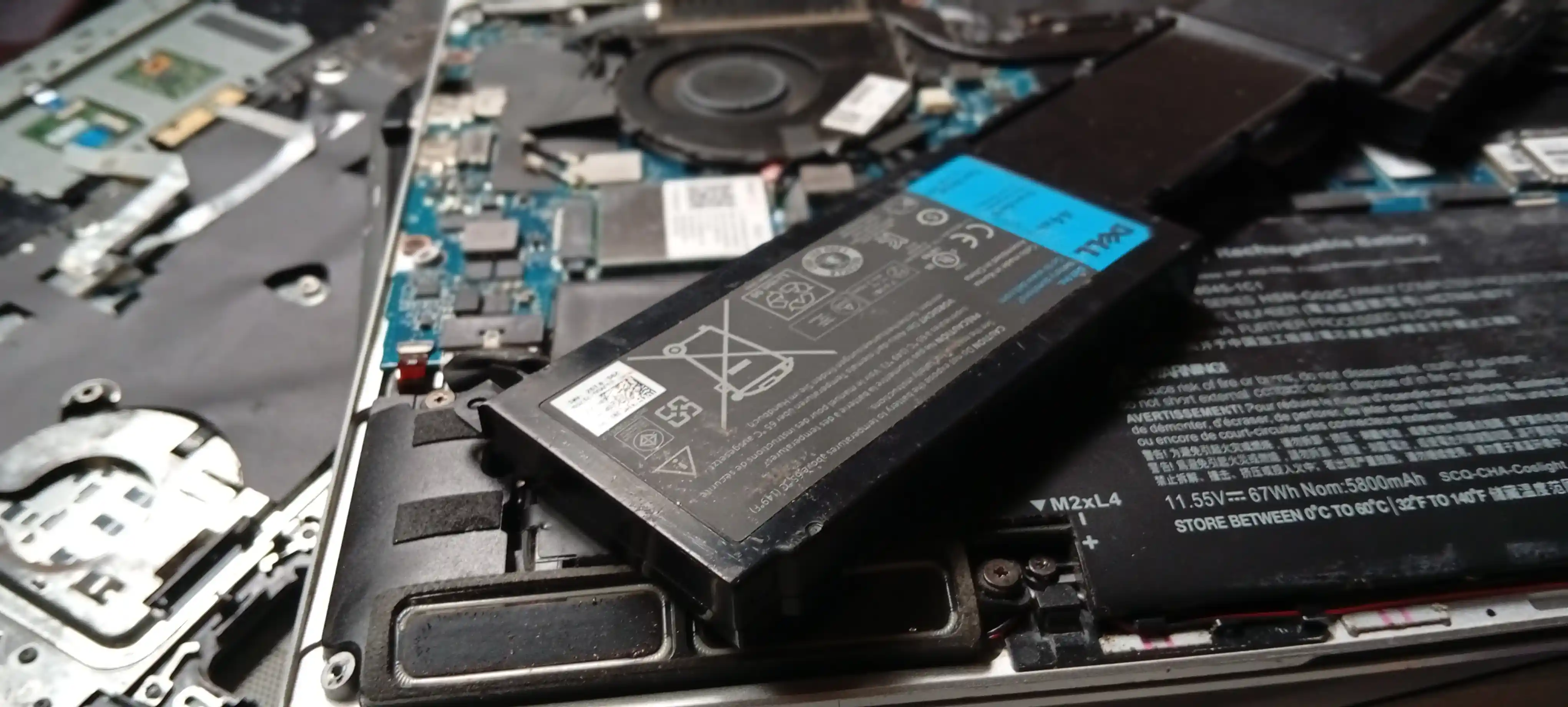
Hardware issues often show up as something physical, random, or consistent no matter what software you’re using.
Here are some common signs that point towards hardware:
-
The laptop doesn’t power on at all, even when connected to a known good charger. No lights, no fan and you don't hear anything.
-
It turns on, then suddenly shuts off by itself, maybe you hear a beep or two and lights blink or flash. You may notice it gets hot or goes off when you move it slightly.
-
The battery drains very fast or jumps from, say, 60% to 5% in a few minutes.
-
The laptop makes strange clicking, grinding, or buzzing sounds, especially from the side where the hard drive or fan is.
-
The screen flickers, shows lines, strange colors, or goes black, but you can hear the laptop is still running.
-
Some keys on the keyboard don’t work no matter what you do.
-
USB ports or the charging port are loose, bent, or only work when you hold the cable at a certain angle.
A big clue with hardware problems is:
They usually don’t care what app you’re using.
If it randomly shuts down whether you’re in Chrome, Word, or just sitting in the BIOS setup screen, that’s very likely hardware or firmware, not a “Windows problem”.
Another sign:
If you install a fresh copy of Windows and the exact same problem happens in the exact same way, the issue is probably not software.
How Software Problems Usually Look
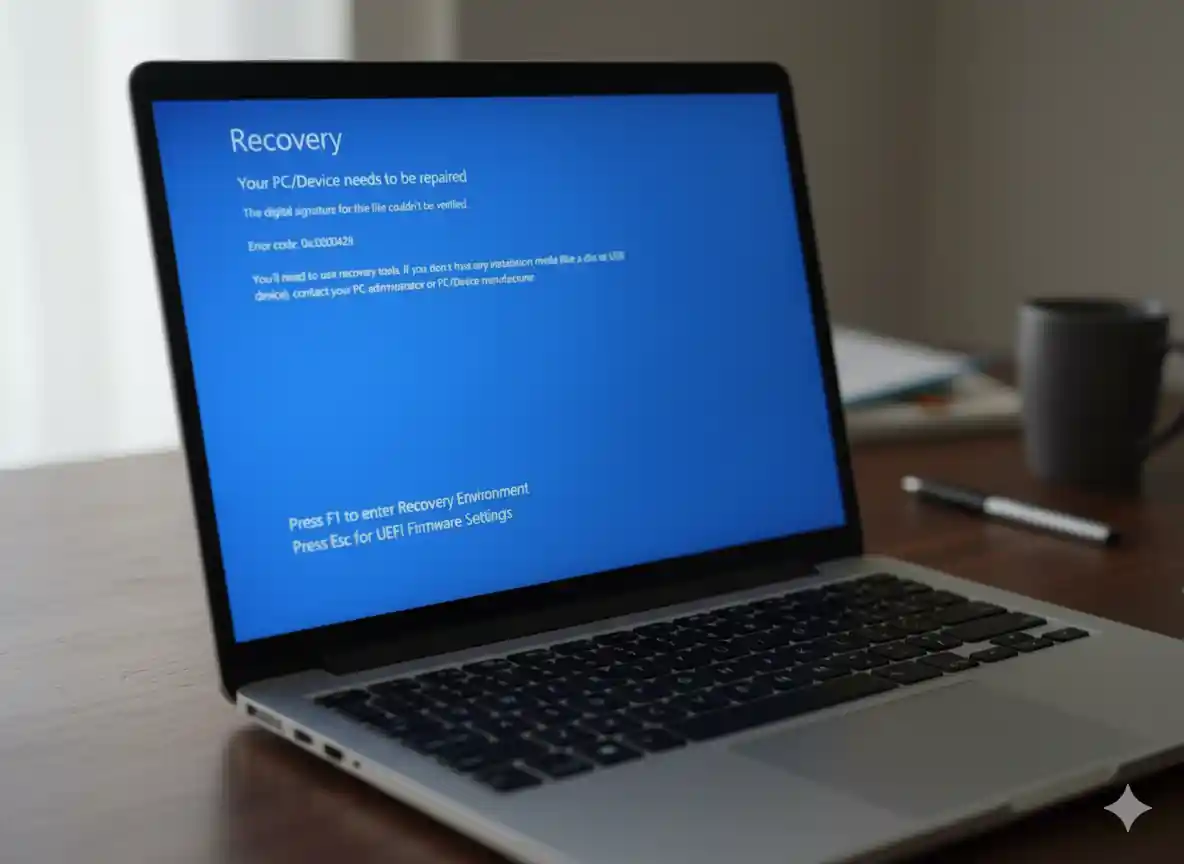
Software issues show up more in how your laptop behaves after it has powered on.
The laptop turns on, the lights come on, you hear the fan, and Windows at least tries to start. Then the wahala starts: it’s slow, apps crash, you see error messages, the network misbehaves, or Windows refuses to boot properly.
This is the area where, as a Windows technician, I see a lot of problems that look scary to users but are actually very fixable without formatting or losing data, especially things like boot issues, network errors, and bad configuration.
Let’s talk about those three, because they are very common and very often recoverable.
1. Boot Issues: When Windows doesn't load correctly
Boot problems are the ones that scare people the most. You press the power button and:
-
Windows gets stuck on a spinning circle, blue or black screen with some error code or message.
-
You see “Preparing Automatic Repair” and it loops repeatedly
-
You only see a black screen with a cursor
-
You get to the login screen, but it freezes after you sign in
To a regular user, it feels like “the laptop is dead” or “Windows is finished”. Many people go straight to “I need to reset the PC” or “I need a new laptop.”
But most of these issues are software, not hardware.
They can be caused by:
-
A Windows update that didn’t install cleanly
-
A driver that got corrupted
-
A startup program that is blocking the normal boot
-
Damaged system files from improper shutdowns or power cuts
The good news is: a lot of these boot issues have a very high resolution rate without resetting the PC or wiping your files.
With the right tools and knowledge, a Windows technician can:
-
Use Safe Mode or Recovery Environment to disable problem startups
-
Repair system files instead of reinstalling everything
-
Roll back bad updates or drivers
-
Fix boot configuration so Windows can start again
So if your laptop powers on but Windows is struggling to boot, don’t be too quick to hit “Reset this PC” and wipe your stuff. That’s usually the last resort. In many cases, a proper Windows tech can bring it back to life while your data stays exactly where it is.
2. Network & Internet Errors
Network problems are another area where people suffer unnecessarily.
You might see:
-
“No Internet access” even though Wi‑Fi shows connected
-
The browser refusing to open websites, but other devices on the same network are fine
-
Unstable connection that comes and goes on just one laptop
-
Apps that say “offline” while your phone is working perfectly on the same Wi‑Fi
Many users immediately blame the router or the internet provider, or they start thinking the network card is “bad” and needs replacement.
In reality, a lot of these issues are simple (not-so-simple) software or configuration problems:
-
Wrong DNS settings (like that laptop still pointing to an old company server)
-
Manual IP settings that don’t work on your current network
-
A VPN or firewall blocking connections
-
A driver update that broke the network adapter
-
Airplane mode, metered connection, or power-saving settings quietly interfering
From my experience, once you understand how Windows handles network settings, these issues are very fixable. You usually don’t need a new router, a new network card, or a full reset. You just need the right eyes to look at the configuration and put things back where they should be.
3. Bad Configuration and “Settings Gone Wrong”
Sometimes the problem isn’t a virus or a failing part. It’s simply Windows being told to behave in a way that doesn’t work for you.
This can show up as:
-
A laptop that sleeps or hibernates too aggressively and “won’t wake up” properly
-
Apps that open on the wrong screen, or a display that looks zoomed in or stretched
-
No sound because the wrong audio output is selected
-
Performance issues because something heavy is set to start automatically every time
-
Strange behaviour that started right after changing a setting or installing some “tweaking” tool
These are classic bad configuration issues. They’re annoying, and they can absolutely make a laptop feel “spoilt”, but they don’t usually mean the hardware is dying.
This is another area where a Windows technician can quietly go through:
-
Startup apps
-
Power options
-
Display and sound settings
-
Background services
…and undo the damage without touching your files.
Again, the success rate here is very high without resetting the whole system.
What You Can Safely Try Yourself
If your laptop powers on and you can at least get into Windows, there are some low-risk things you can try before calling a technician:
Restart the laptop properly, not just closing the lid. A full restart clears temporary glitches.
Remove or uninstall any app you installed right before the problem started, then restart and see if it improves.
Run a virus/malware scan using a trusted antivirus or Windows’ built-in Defender.
Check for Windows updates and install important ones, especially if the issue feels like a bug or compatibility problem.
If the laptop is just slow, close programs you’re not using and check if it behaves better with fewer things open.
These steps don’t require opening the laptop or buying anything new. They mostly address software and configuration.
Why Bringing in a Windows Technician Often Saves Your Data
A lot of people think, “Once there is a serious problem, I must either reset, format or switch to Linux” That mindset is understandable, but it's not really necessary and it's a whole different story if you don't have backups.
For many software-related issues, a good Windows tech will:
-
Try to repair the existing Windows installation first
-
Work through Safe Mode, recovery tools, and manual fixes
-
Avoid wiping your files unless there is no other choice
In other words, a big part of the job is not just “make it work again”, but “make it work again without losing your stuff.”
From my side as a technician, I can tell you: if your laptop can still boot up, and the drive is not physically dead, chances are high that we can fix the system or at least recover the important data before doing any reset.
Final Thoughts
You don’t have to become a technician to make smarter decisions about your laptop.
If it won’t power on at all, parts are broken, or it reacts to movement and physical pressure, it’s likely a hardware problem and you’ll need someone to open it up.
If it powers on but Windows is having trouble booting, connecting, or behaving properly, that’s usually software, and that’s actually good news. Boot loops, network errors, app errors and bad system configuration are scary to see, but they often have a high success rate of being fixed without resetting or losing your data, especially when a Windows technician gets involved early.
So next time your laptop starts misbehaving, pause before you hit that “Reset this PC” button or rush to buy a new device. Sometimes, what looks like the end of the road is just Windows needing a little professional attention behind the scenes.