Forgetting your Windows password can be frustrating, especially when you urgently need access to important files or work. Whether you use Windows 10 or Windows 11, the good news is that there are several safe and reliable methods to reset your password and regain full access to your PC.
Below is a complete guide you can follow.
Method 1: Reset Your Password via Microsoft Account (Online)
If you sign in using an email (Outlook, Hotmail, Live), then your Windows login is tied to your Microsoft Account. and resetting it is very easy.
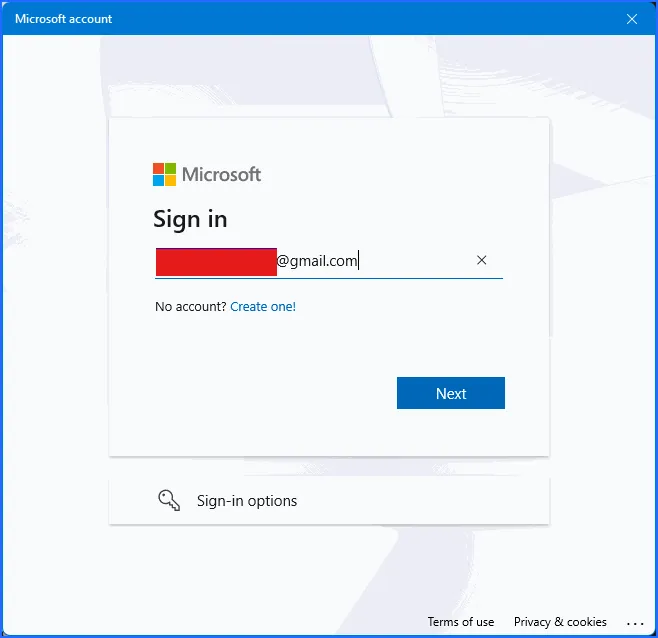
Steps
-
On the login screen, select I forgot my password.
-
Windows will redirect you to the Microsoft password reset page.
-
Enter your email or phone number.
-
Choose a verification method (SMS, email, or authenticator app).
-
Enter the verification code and create a new password.
-
Restart your PC and log in with the new password.
Best for:
✔ Users with internet access
✔ Laptops already linked to a Microsoft account
Method 2: Use a Password Reset Disk (If You Created One Before)
If you previously created a password reset USB, this is the simplest offline method. Check here to see how to create a password reset disk.
Steps
-
Insert your password reset USB.
-
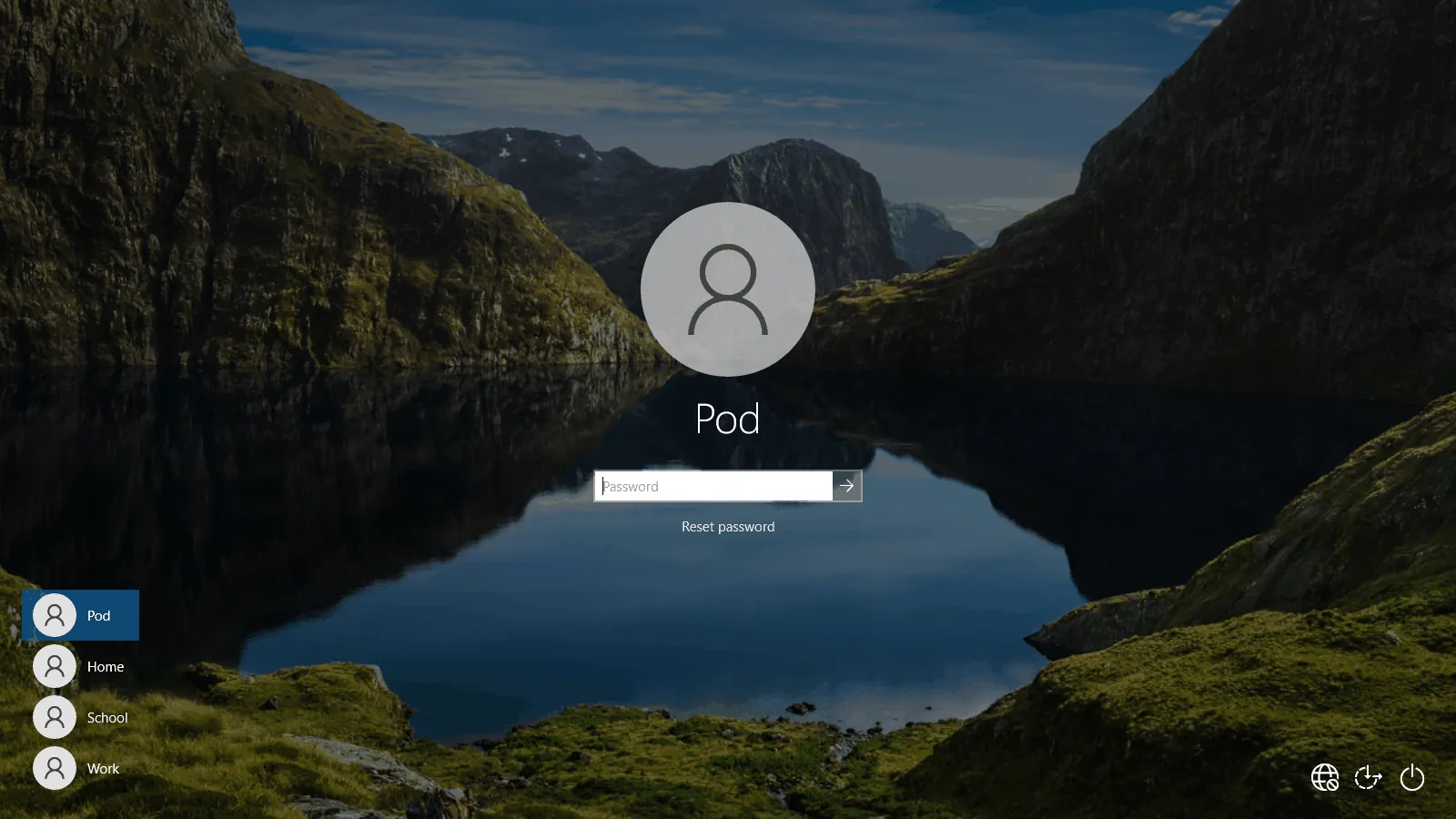
Click Reset Password under the login box.
-
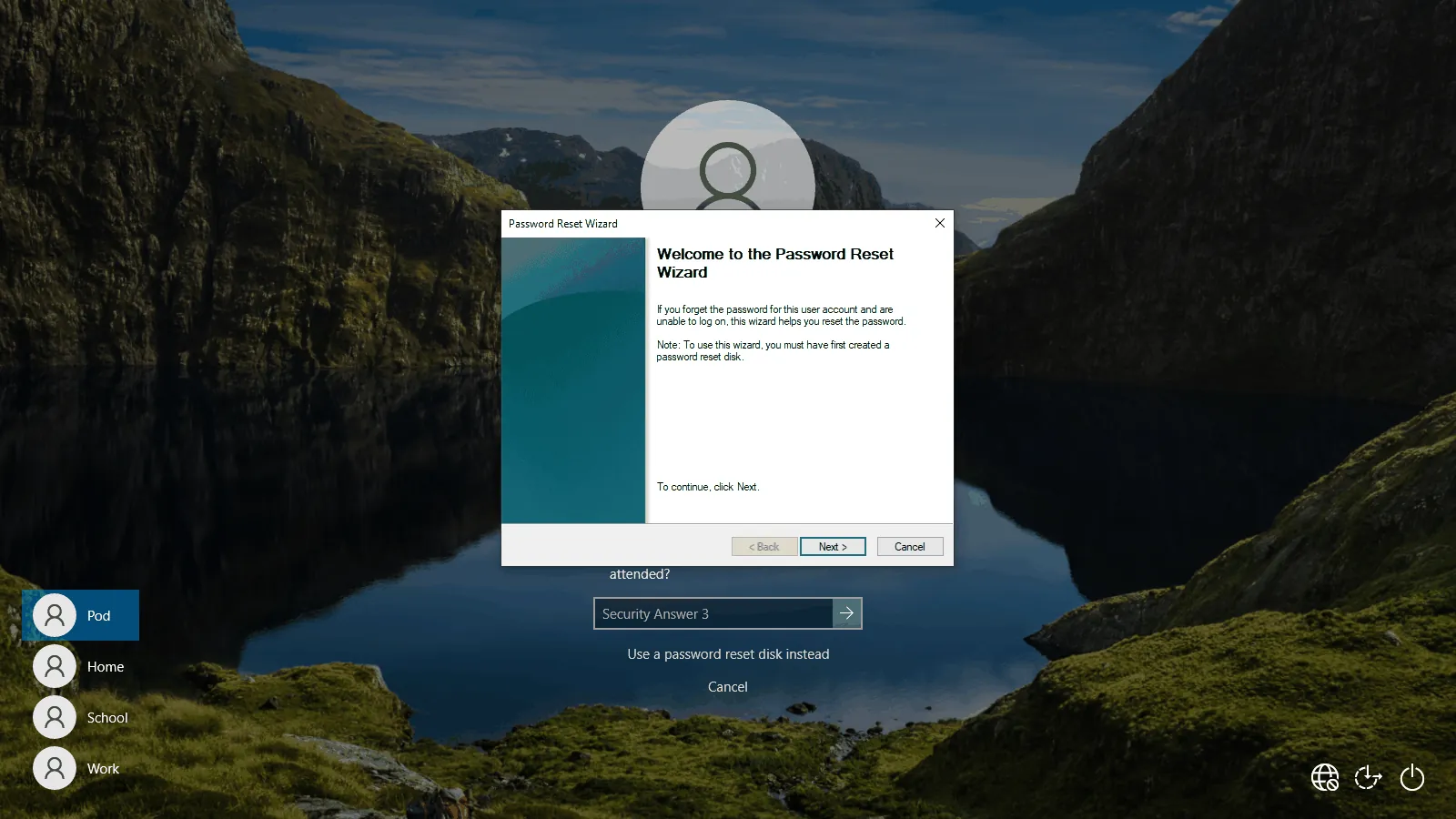
Click Use a password reset disk instead
-
Follow the on-screen wizard to create a new password.
Note:
You must have created this disk before losing access. Windows does not allow you to create one afterward.
Method 3: Reset a Local User Account Using Another Admin Account
If someone else has an admin account on the same PC, or if you have two accounts, this works perfectly.
Steps
-
Log in to the administrator account.
-
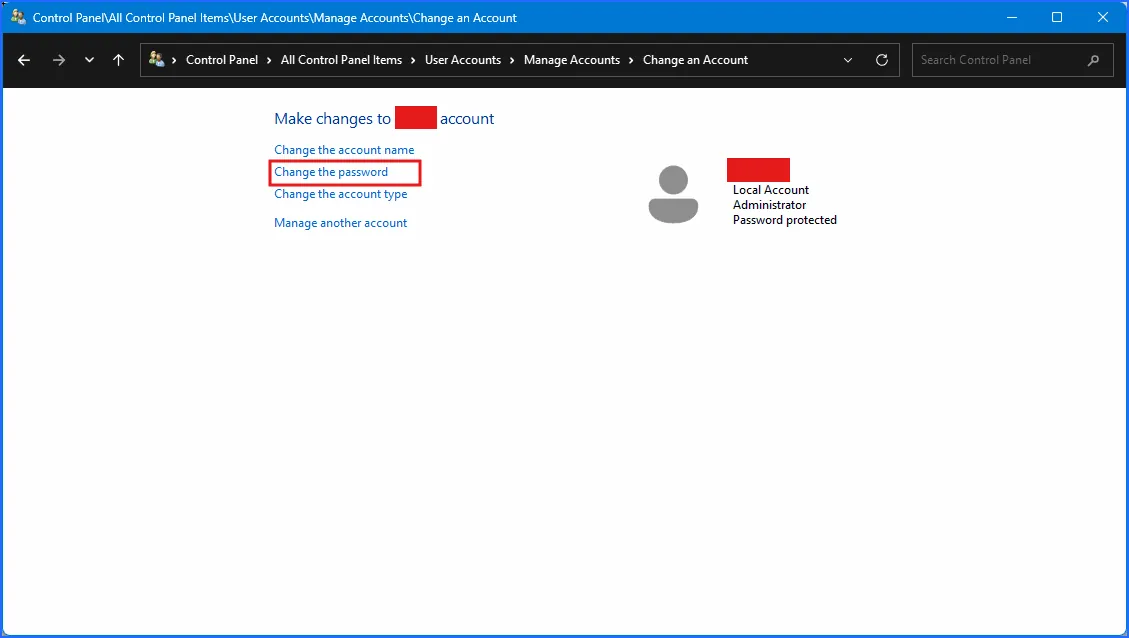
Open Control Panel → User Accounts → Manage another account.
-
Select the locked account.
-
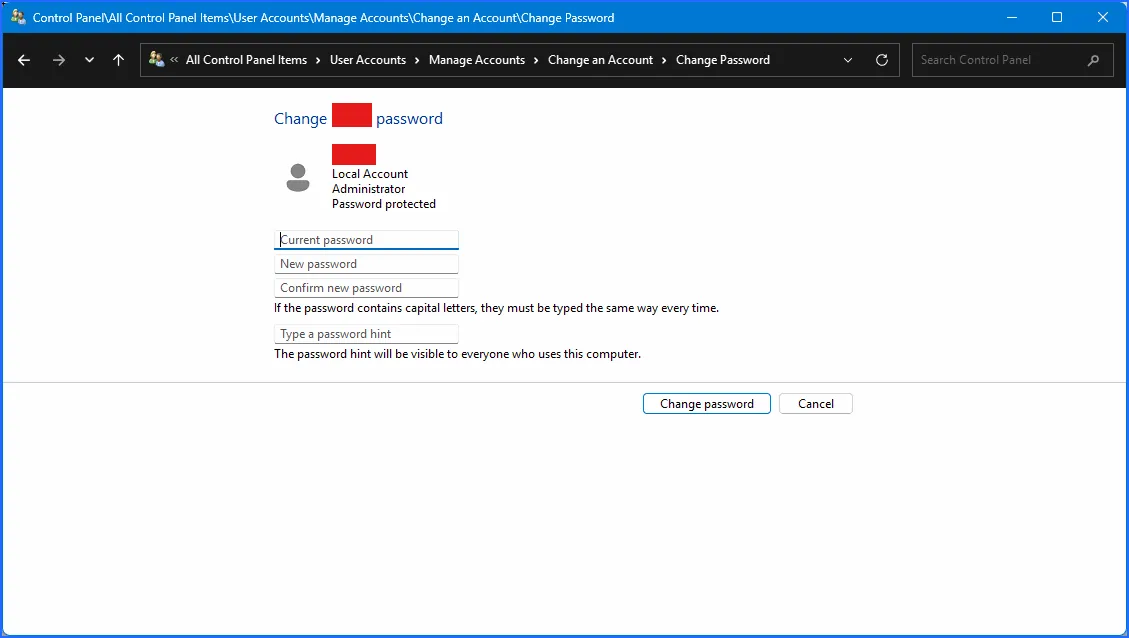
Click Change the password.
-
Enter a new password.
Best for:
✔ Family/shared computers
✔ Systems with multiple accounts
Method 4: Security Questions
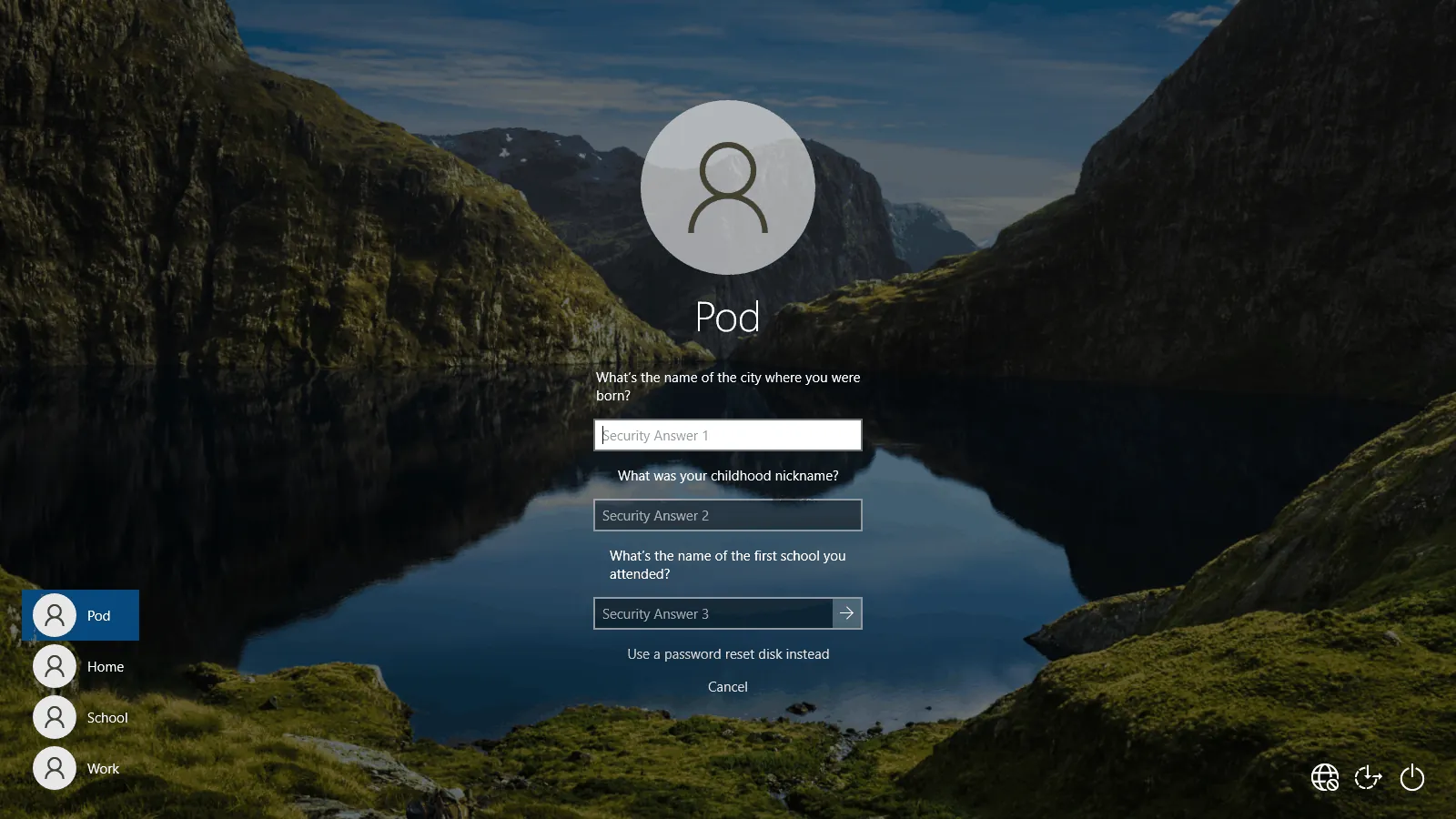
If you set up your PC properly, your PC should have answers to a set of personal questions about you. You can provide answers to those questions and regain access to your PC.
If you're locked out of your PC, click reset password and provide answers to your security questions.
Method 5: Factory Reset Your PC (Last Resort)
If nothing else works, or if the PC has no important files, you can reset Windows.
Steps
-
On the login screen, click Power → Restart while holding Shift.
-
Go to Troubleshoot → Reset this PC.
-
Choose Keep my files (recommended).
-
Follow the on-screen instructions.
This removes apps and settings but keeps your personal files.
Need Help Resetting Your Windows Password?
If you’re still locked out, running into errors, or unsure which method is safe for your PC, I can help you recover access without losing your files.
👉 Contact me for quick, professional Windows support.