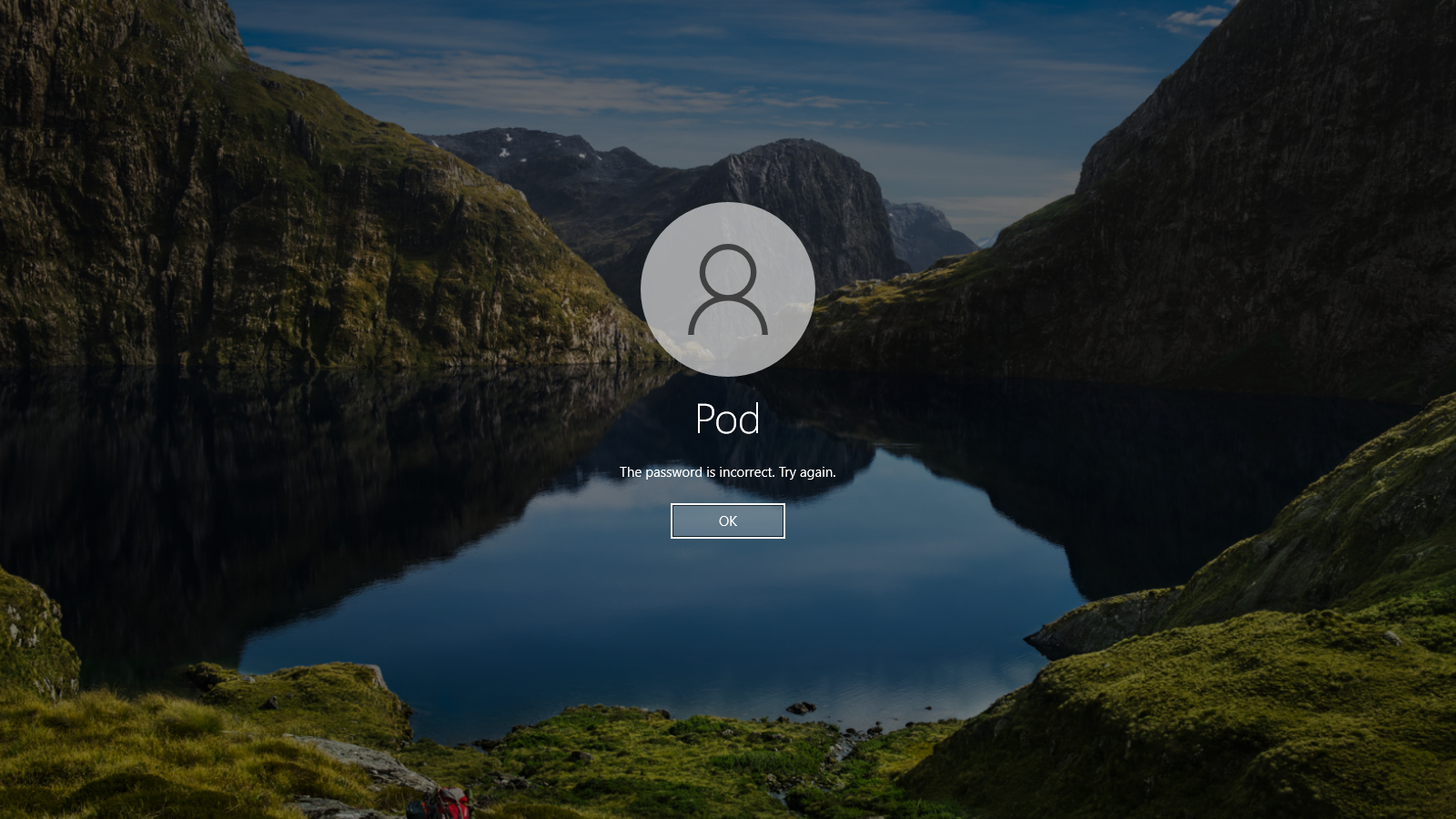
If you ever forget your Windows password, a Password Reset Disk can save you from stress and potential data loss. This simple tool gives you the ability to reset your local account password instantly. without reinstalling Windows or contacting support.
Below is a step-by-step guide on how to create one using any USB flash drive.
What You Need Before You Start
-
A USB flash drive (any size works)
-
A local Windows account (Password Reset Disks do not work with Microsoft accounts)
-
Access to your computer before you forget the password
If you use a Microsoft account to sign in, you won’t see the “Create a password reset disk” option. Instead, you must reset online at account.live.com.
How to Create a Password Reset Disk on Windows
Follow these steps:
1. Insert a USB Flash Drive
Plug in any USB drive. Everything on the drive will remain intact. Windows only stores a tiny reset file.
2. Open the User Accounts Panel
- Press
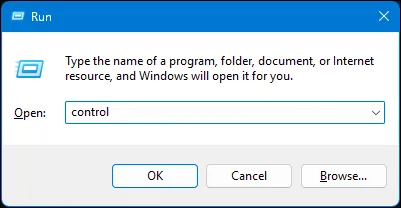
Windows + R, typeControland hit Enter to open Control Panel
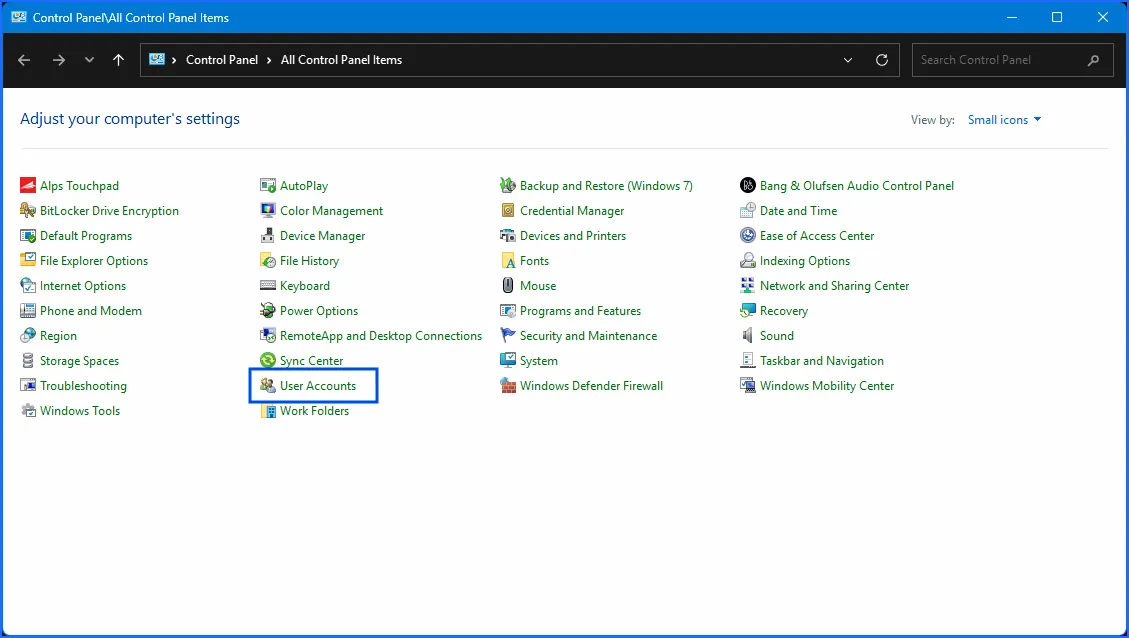
- Go to User Accounts
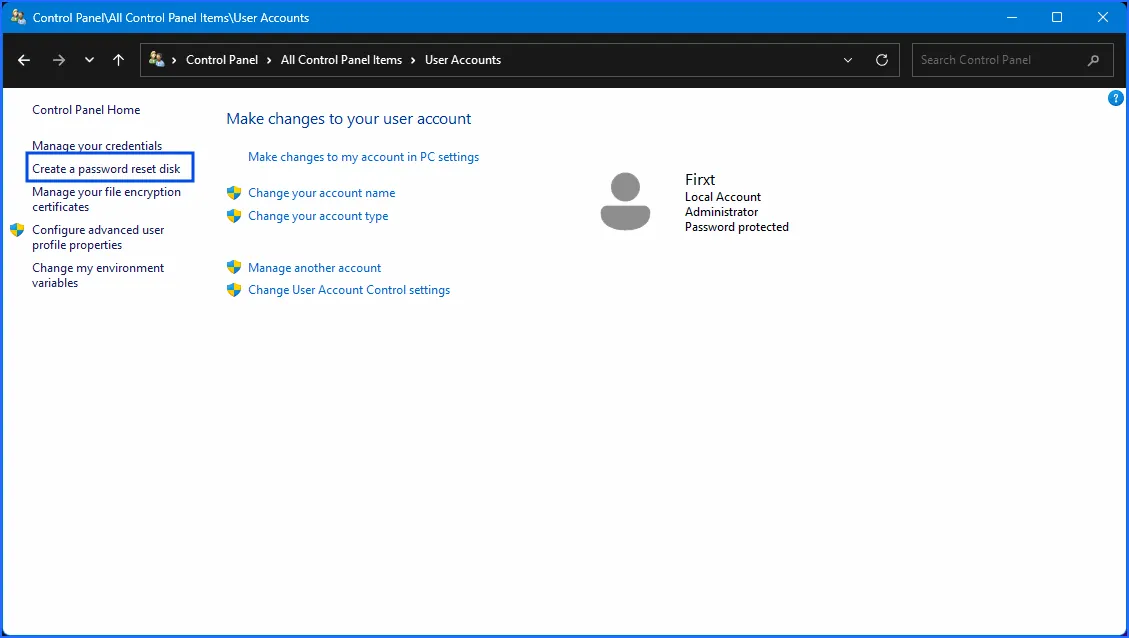
- Click Create a password reset disk from the left pane to Launch the Forgotten Password Wizard
A window titled “Forgotten Password Wizard” will appear.
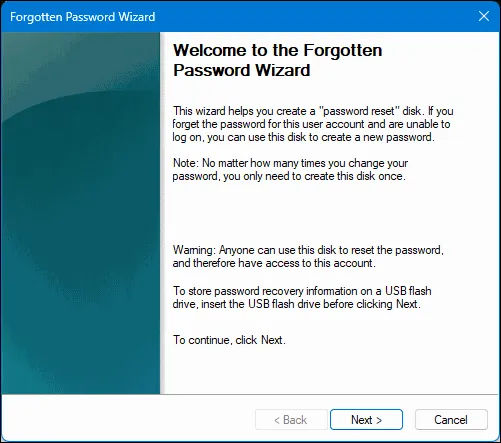
Click Next.
4. Select Your USB Drive
Choose your inserted flash drive from the dropdown list.
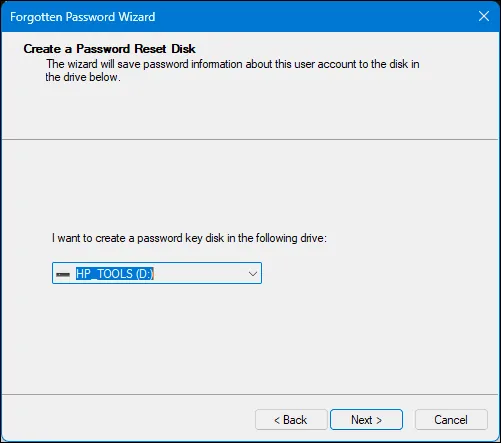
Click Next.
5. Enter Your Current Password
Windows will ask you for your current account password.
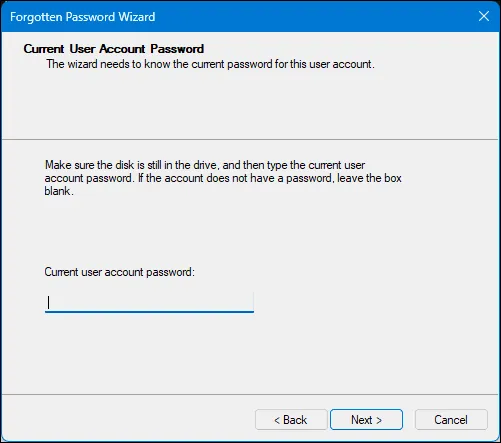
Type it in and click Next.
6. Finish the Process
Windows will create a file named userkey.psw on your flash drive.
Once complete, click Finish.
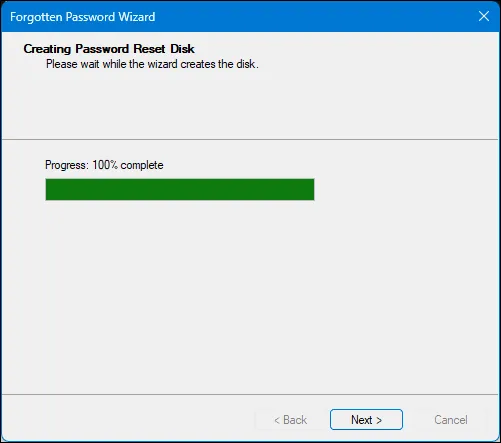
You can now remove the USB drive
Important Notes
-
You only need to create the disk once. It works even after you change your password later.
-
Keep the flash drive in a safe place.
-
Anyone who gets access to your reset disk can reset your password, so treat it like a physical key.